4 min read
Home
Table of Contents
Overview
The Home page is the main entry point of the Dorkinians Website app. It features a chatbot interface that allows you to ask questions about player statistics, team performance, and club information.
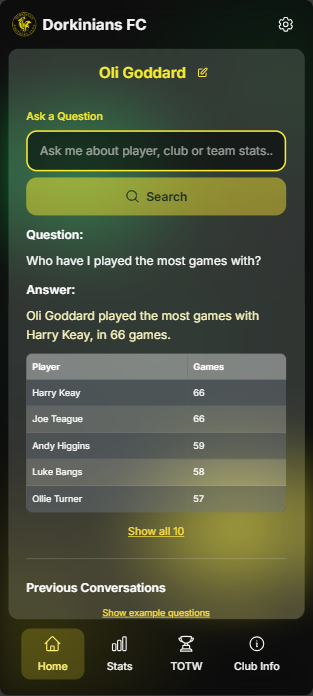
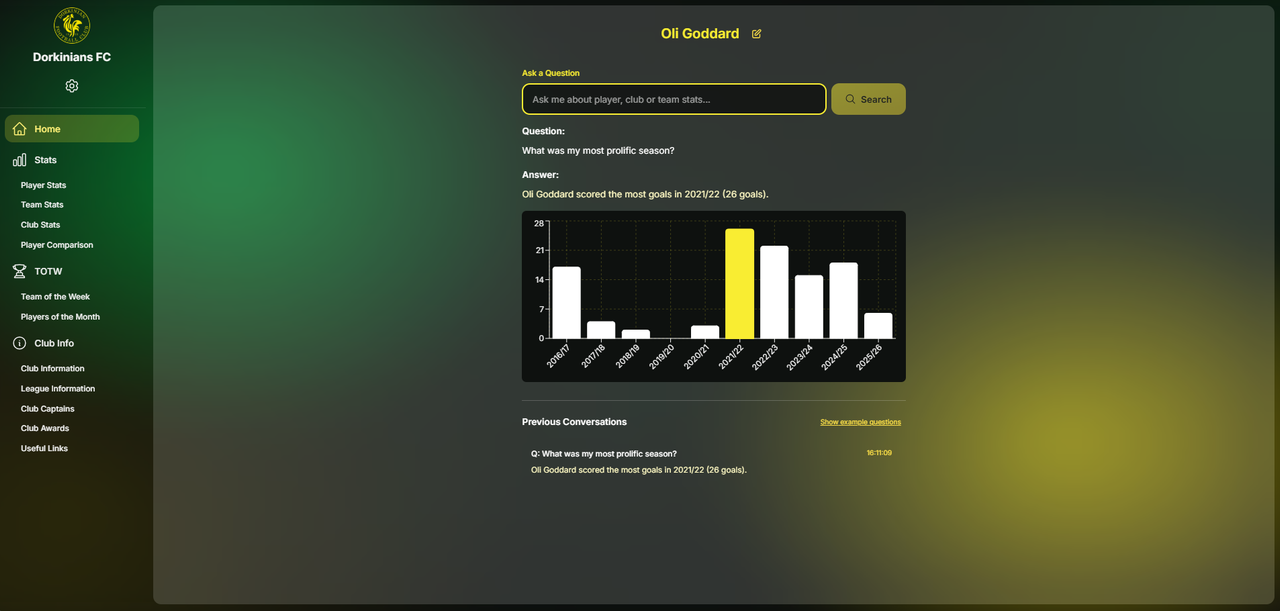
Users must initially select a player before using the chatbot, allowing them to ask questions about that player's statistics using "I", "me", or "my" in the question such as "How many goals have I scored?" or "What was my highest scoring season?". The chatbot will then attempt to answer the question based on the player's statistics and return visualisations where applicable.
The chatbot uses advanced natural language processing to understand your questions and return relevant statistics with visualizations.
You can still ask questions about other players when you already have a player selected, just as long as you use their full name in the question.
E.g. "How many goals has Oli Goddard scored?"
Player Selection
Before using the chatbot, you need to select a player. The Home page provides an intuitive player selection interface.
Selecting a Player
To select a player:
- Player Selector: Use the player selector dropdown on the Home page
- Search: Type a player's name to search and filter the list. At least 3 characters are required to search.
- Chatbot Activation: Once a player is selected, the chatbot interface will appear automatically
The team shown in brackets next to the player's name is the team they have played for the most.
Player selection persists across sessions, so you don't need to reselect your player every time you use the app.
Recent Players
The Home page displays a "Recently Selected Players" section when no player is currently selected. This feature shows up to 5 of your most recently selected players for quick access.
Editing Player Selection
To change your selected player:
- Edit Button: Click the edit icon next to the player's name (when chatbot is visible)
- Player Selector: The player selector will reappear
Chatbot Interface
The chatbot interface is the primary way to interact with the app. You can ask questions about any aspect of Dorkinians FC statistics and receive instant answers with visual data.
Asking Questions
To ask a question, simply type it into the chatbot input field and press Enter or tap the send button. The chatbot understands natural language, so you can ask questions in various ways:
- "How many goals have I scored for the 3rd team?"
- "Where did the 2s finish in the 2017/18 season?"
- "Which team has conceded the fewest goals in history?"
- "How many clean sheets have I had in a row?"
The chatbot understands typos and variations in player names, team names, and stat types. For example, "Luk Bangs" will be matched to "Luke Bangs".
If a question cannot be answered, the chatbot will return a message saying "I'm not sure how to answer that question. Please try again."
The question will automatically be sent to the developer for review to help train and improve the chatbot's responses.
Example Questions
The chatbot interface includes example questions that you can click to quickly ask common queries. These examples demonstrate the types of questions the chatbot can answer:
- Player statistics questions
- Team performance queries
- Club-wide statistics
- Historical data queries
Clicking an example question will automatically populate the input field, and you can modify it or submit it as-is.
Use example questions as templates for your own queries - they show the best way to phrase questions for accurate results.
Conversation History
The chatbot maintains a conversation history during your session. Previous questions and answers are displayed below the chatbot, allowing you to:
- Review previous queries and responses
- See the context of your conversation
- Reference earlier answers
Conversation history helps the chatbot understand context for follow-up questions, making your interactions more natural. For example, if you ask "How many goals have I scored?" followed by "What about assists?", the chatbot knows you're still asking about your own statistics.