Settings

< Back to Dorkinians Website

Table of Contents

Overview

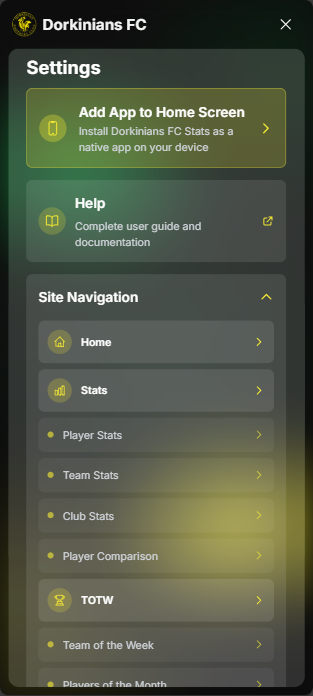
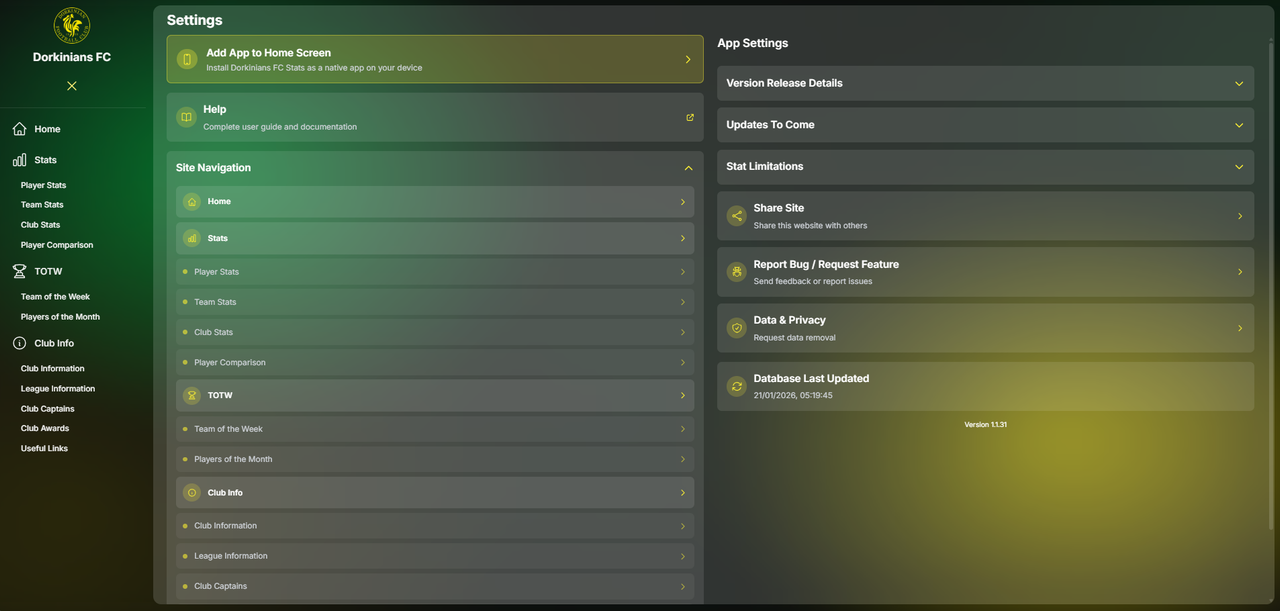
The Settings page provides quick navigation to all app sections, displays database status information, and offers PWA (Progressive Web App) installation options. It serves as a central hub for app management and navigation.

info

The Settings page is accessible from the header menu icon on any page in the app.

[Image: Settings Page Screenshot]

Back to Table of Contents

Accessing Settings

To access the Settings page:

  1. From Any Page: Tap the menu icon (three horizontal lines or hamburger menu) in the header
  2. Settings Option: Select "Settings" from the menu
  3. Direct Access: The Settings page can also be accessed via direct URL (where supported)
tip

The Settings page is hidden from the bottom navigation bar to keep the main navigation clean, but it's always accessible via the header menu.

[Image: Accessing Settings Screenshot]

Back to Table of Contents

Available Screens Navigation

The Available Screens section provides a comprehensive navigation tree showing all available pages and sub-pages in the app.

Main Pages

The main navigation pages are displayed with icons:

  • Home: Chatbot interface (no sub-pages)
  • Stats: Statistics section with multiple sub-pages
  • TOTW: Team of the Week section with sub-pages
  • Club Info: Club information section with sub-pages

Each main page is displayed as a button that navigates directly to that page when tapped.

[Image: Main Pages Navigation Screenshot]

Back to Table of Contents

Sub-Pages

Sub-pages are displayed under their respective main pages:

Stats Sub-Pages:

  • Player Stats
  • Team Stats
  • Club Stats
  • Comparison

TOTW Sub-Pages:

  • Team of the Week
  • Players of the Month

Club Info Sub-Pages:

  • Club Information
  • League Information
  • Club Captains
  • Club Awards
  • Useful Links

Each sub-page is displayed as a nested button that navigates directly to that specific sub-page when tapped.

tip

Use the sub-page navigation to jump directly to a specific section without having to navigate through the main pages first.

[Image: Sub-Pages Navigation Screenshot]

Back to Table of Contents

Quick Navigation

The Available Screens section can be expanded or collapsed:

  • Expand/Collapse: Tap the "Available Screens" header to expand or collapse the navigation tree
  • Quick Access: When expanded, you can quickly navigate to any page or sub-page with a single tap
  • Visual Hierarchy: Main pages and sub-pages are visually distinguished with different styling

This provides a quick way to navigate to any section of the app without using the bottom navigation or swiping through pages.

[Image: Quick Navigation Screenshot]

Back to Table of Contents

Database Status

The Database Status section displays information about the app's database connection and data seeding status.

Seeding Status

The seeding status indicates whether the database has been successfully populated with the latest statistics data:

  • Success: Database has been successfully seeded with the latest data
  • Failed: Database seeding encountered an error
  • Running: Database seeding is currently in progress
  • Unknown: Seeding status is not available
info

Database seeding is the process of loading statistics data into the database. This typically happens automatically but may need to be triggered manually in some cases.

[Image: Seeding Status Screenshot]

Back to Table of Contents

Status Indicators

Status indicators use color-coded icons to show the current state:

  • Green Checkmark: Seeding was successful
  • Red X: Seeding failed
  • Yellow Clock (Pulsing): Seeding is currently running
  • Gray Clock: Status is unknown or not available

The status indicator is accompanied by a text summary explaining the current state.

[Image: Status Indicators Screenshot]

Back to Table of Contents

Database Information

When seeding is successful, additional information may be displayed:

  • Nodes Created: Number of database nodes (data entries) created during seeding
  • Relationships Created: Number of relationships between data entries created
  • Last Seeding Time: When the database was last successfully seeded

This information helps verify that the database contains the expected amount of data.

tip

If you notice statistics seem outdated, check the database status to see when data was last updated.

[Image: Database Information Screenshot]

Back to Table of Contents

PWA Installation

The PWA Installation section provides options for installing the Dorkinians Website as a Progressive Web App on your device.

Install Prompt

The install prompt appears when:

  • The app detects that it can be installed on your device
  • You haven't already installed the app
  • Your browser supports PWA installation

To Install:

  1. Tap the "Install App" button
  2. Follow your device's installation prompts
  3. The app will be added to your home screen or app drawer
info

PWA installation is supported on most modern mobile browsers and some desktop browsers (Chrome, Edge, Safari).

[Image: Install Prompt Screenshot]

Back to Table of Contents

Installation Benefits

Installing the app as a PWA provides several benefits:

  • Home Screen Access: Quick access from your device's home screen
  • App-Like Experience: Full-screen experience without browser UI
  • Offline Capabilities: Some features may work offline (where supported)
  • Faster Loading: Improved performance and faster load times
  • Push Notifications: Receive updates and notifications (where enabled)
tip

Installing the app provides a more native, app-like experience compared to using it in a browser.

[Image: Installation Benefits Screenshot]

Back to Table of Contents

Update Notifications

When the app is installed as a PWA, you may receive notifications about:

  • App Updates: When a new version of the app is available
  • Data Updates: When new statistics data is available
  • Important Announcements: Club or app-related announcements

Update notifications help ensure you're always using the latest version with the most current data.

[Image: Update Notifications Screenshot]

Back to Table of Contents

App Updates

The Settings page provides tools to check for and install app updates.

Check for Updates

You can manually check for app updates from the Settings page:

  1. Navigate to Settings: Open the Settings page from the header menu
  2. Find Update Section: Locate the "Check for Updates" section
  3. Tap Check Button: Tap the "Check" button to check for available updates
  4. View Status: The app will display whether updates are available or if you're using the latest version

Update Status Messages:

  • "No updates available": You're using the latest version
  • "Update available": A new version is ready to install
  • "Checking...": The app is currently checking for updates
tip

Check for updates regularly to ensure you have access to the latest features and improvements.

[Image: Check for Updates Screenshot]

Back to Table of Contents

Update Toast

When an app update is available, an Update Toast notification appears at the bottom of the screen. This notification provides:

  • Update Information: Shows the new version number and release notes (if available)
  • Update Button: Tap "Update Now" to install the update immediately
  • Dismiss Option: Tap the X button to dismiss the notification (you can update later from Settings)

Update Toast Features:

  • Appears automatically when updates are detected
  • Can be dismissed and accessed later from Settings
  • Shows version number and release notes
  • One-tap update installation
info

If you dismiss the update toast, you can still update the app later from the Settings page.

[Image: Update Toast Screenshot]

Back to Table of Contents

Help and Support

The Settings page provides access to help resources and support options.

A "Help" button in the Settings page provides quick access to the complete user documentation:

  1. Find Help Button: Locate the "Help" button in the Settings page
  2. Tap to Open: Tap the button to open the documentation in a new tab
  3. Browse Documentation: Access complete guides for all app features

The documentation includes:

  • Complete user guides for all pages
  • Feature explanations and usage examples
  • Tips and tricks for using the app effectively
  • Troubleshooting information

[Image: Help Button Screenshot]

Back to Table of Contents

Feedback Modal

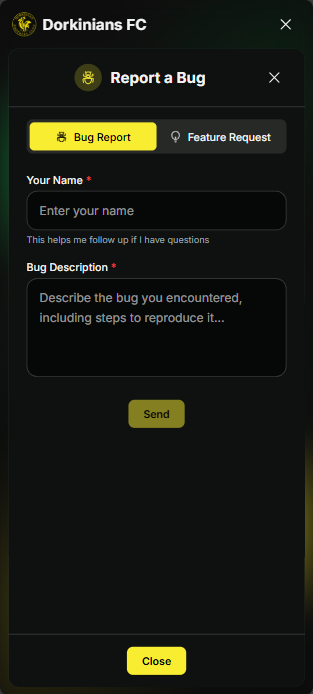
The Settings page includes a feedback option to submit comments, suggestions, or report issues:

  1. Access Feedback: Look for the feedback option in the Settings page
  2. Open Modal: Tap to open the feedback modal
  3. Submit Feedback: Enter your feedback and submit

Feedback Types:

  • Bug reports
  • Feature suggestions
  • General comments
  • Questions or concerns
tip

Your feedback helps improve the app. Don't hesitate to share your thoughts!

[Image: Feedback Modal Screenshot]

Back to Table of Contents

Data Privacy Modal

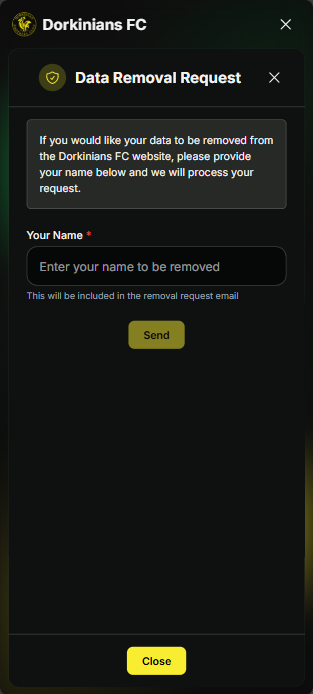
The Settings page provides access to data privacy information:

  1. Access Privacy Info: Look for the data privacy option in the Settings page
  2. Open Modal: Tap to open the data privacy modal
  3. Review Information: Read about how your data is handled

The data privacy modal includes information about:

  • Data collection practices
  • How data is used
  • Data storage and security
  • Your privacy rights
info

The app is committed to protecting your privacy. Review the data privacy information to understand how your data is handled.

[Image: Data Privacy Modal Screenshot]

Back to Table of Contents

App Information

The Settings page may display additional app information, such as:

  • App Version: Current version number
  • Last Updated: When the app was last updated
  • Build Information: Technical details about the app build

This information helps identify which version of the app you're using and when it was last updated.

[Image: App Information Screenshot]

Back to Table of Contents

Tips and Tricks

  1. Use Quick Navigation: The Available Screens section is the fastest way to jump to any specific page or sub-page

  2. Check Database Status: If statistics seem outdated or incorrect, check the database status to see when data was last updated

  3. Install as PWA: For the best experience, install the app as a PWA on your mobile device

  4. Monitor Updates: Keep an eye on update notifications to ensure you're using the latest version. Use the "Check for Updates" feature regularly

  5. Expand Navigation Tree: Expand the Available Screens section to see all available pages at a glance

  6. Use Settings as Hub: The Settings page serves as a central hub - use it to quickly navigate to any section

  7. Access Help: Use the Help button to access complete documentation when you need assistance

  8. Provide Feedback: Use the feedback option to share your thoughts and help improve the app

warning

If database seeding fails, some statistics may not be available. Check the database status and contact support if issues persist.

Back to Table of Contents